
Setup
When your Mori arrives, follow this page from top to bottom. It takes about five to ten minutes.
1. What you need
- The Mori device (in the box: Magnetic Clip, Necklace, Guide kit. Unlimited Bundle / Early Bird also include the Magnetic Watchband)
- An iPhone on iOS 18.0 or later (Android support is coming)
- A USB Type-C charging cable (not included; please use your own)
2. Setup steps
-
Charge
Take Mori out of the box and charge it with a USB Type-C cable. While charging, the LED slowly pulses orange; when full, it turns off (about 1.5 hours).
The first charge also wakes the device from shipping sleep. Plug it in once, as soon as it arrives.
-
Download the app
Download from mori.to/app. Currently distributed as a beta / alpha through TestFlight only.

-
Create an account and pair
Open the app, create an account, and follow the onboarding.
A pairing tip: after charging, press the center button on the device and connect while the LED is lit. A blue LED means the device is waiting to pair.
-
Wear it
On your collar or pocket with the Magnetic Clip, around your neck with the Necklace, or on your wrist with the Magnetic Watchband (included in Unlimited Bundle / Early Bird, also sold separately). Choose to match the day's clothes.
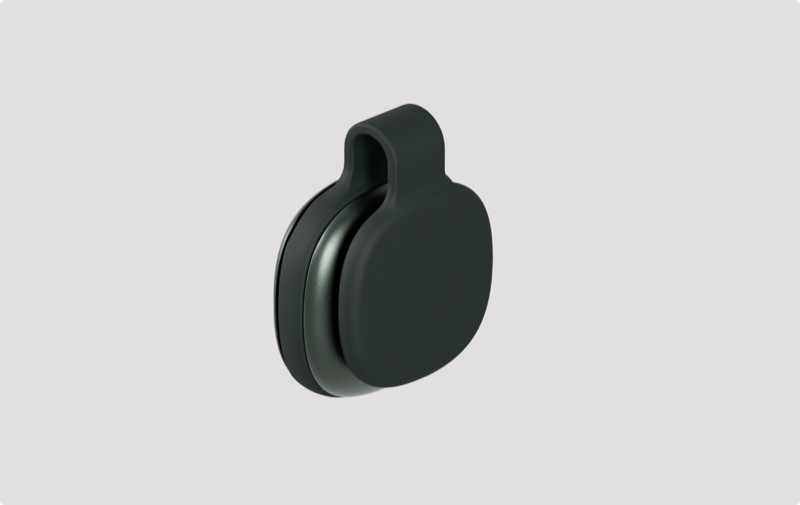
Magnetic Clip
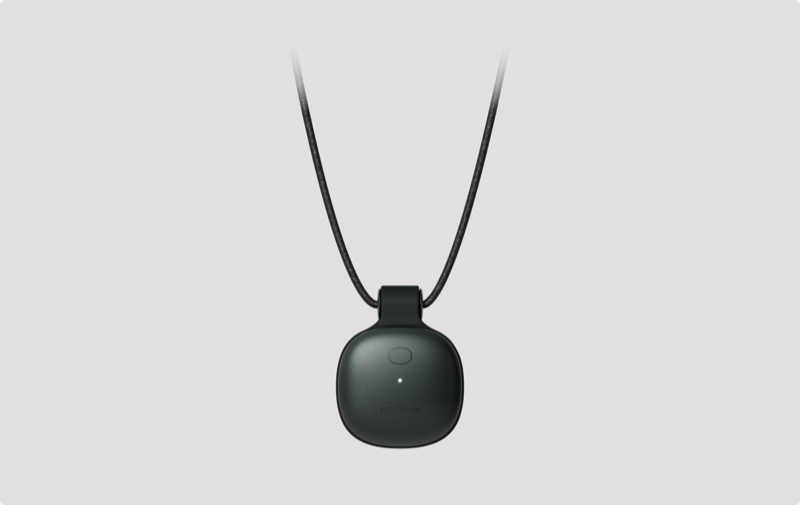
Necklace
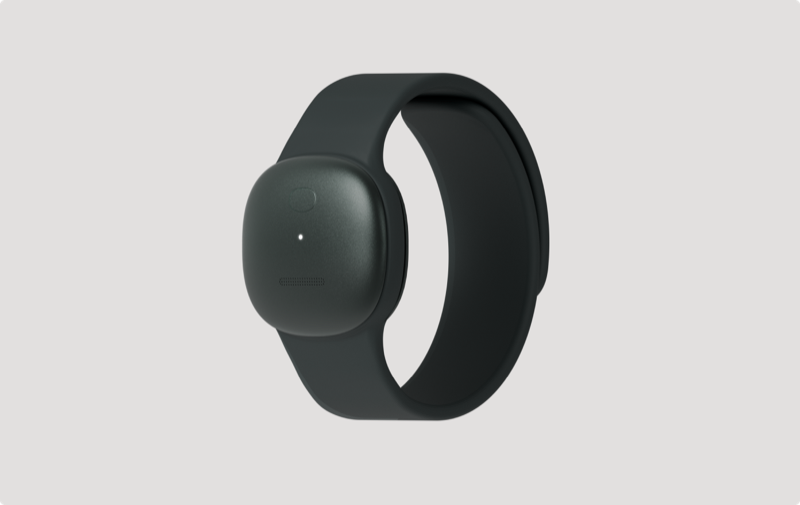
Magnetic Watchband
3. After setup
- Connect location and photos: with the context of your day alongside conversations, your journal gets noticeably better. Photos are referenced on your device only and never uploaded
- Decide how you wear it: switching between the clip and the necklace keeps Mori comfortable through the movements of a day
4. Your first day
Once paired, there is almost nothing to operate.
- Recording starts on its own. Mori detects the beginning of a conversation (the LED glows white while recording)
- For a moment you want to keep, single-tap the device. It flashes yellow once and bookmarks the moment
- To stop recording, press and hold for 1 second to mute (LED off). Hold again to resume
- At the end of the day, open the app: your conversations are transcribed, summarized, and arranged into a journal
5. Reading the LED
The LED on the device tells you its current state. These are the seven basic states.
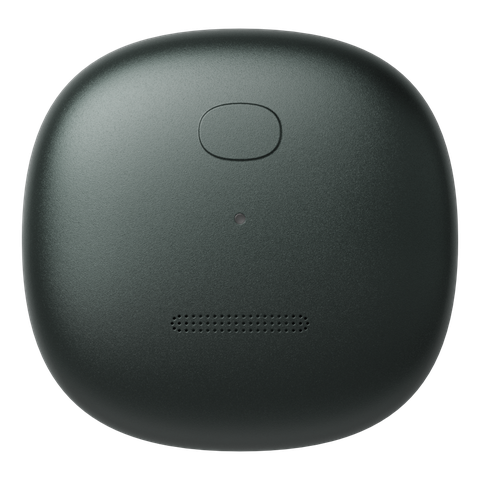
Recording
Solid white
Paused in silence
White, breathing slowly
Muted
Off
Charging
Orange, breathing slowly. Turns off when fully charged
Charging while recording
White and orange, alternating
Battery low
Red, breathing slowly. Please charge
Waiting to pair
Solid blue (only before setup)
6. Power
- Turn on: press the button for about a second, or connect the charging cable. Startup can take a few seconds. If the battery ran out and the device turned off, connect the charging cable
- Turn off: there is no power-off control (when the battery runs out, the device powers off on its own)
If it stops responding
Try these in order.
- Connect the charging cable: if it was just an empty battery, this starts it up. Your data is untouched
- Hold the button to force a restart: if it still does not respond, keep holding the button and it restarts. Pairing and recorded data stay as they are, though what was being recorded just before may be lost
Note: a factory reset is not a troubleshooting step. Running it erases all recordings on the device
7. If something goes wrong
Just the common stumbles, here.
- The app cannot find the device: press the center button for about a second and check that the LED lights up. If it still cannot be found, turn your phone's Bluetooth off and on again, then retry
- Conversations are not appearing in the app: Mori syncs while Bluetooth is connected. Open the app and wait a moment; they usually appear
Other troubleshooting, the LED reference, and FAQs are on the support site.
8. Factory reset
Use this when handing the device to someone else, or to start setup over from the beginning. Running it permanently erases all recordings left on the device. This cannot be undone.
- Tap the button, then press again right away (within 0.5 seconds)
- Keep holding; after 1 second the LED turns purple
- Hold for 5 seconds while purple and the reset runs (the LED turns off and the device powers down)
- It restarts on its own; when the LED turns solid blue (waiting to pair), you are done. Set it up again from the app
- To cancel midway, lift your finger before the 5 seconds pass (the reset is cancelled and the device returns to its previous state)
- A reset is blocked during updates or when the battery is nearly empty (the LED blinks red quickly to let you know)